

You’re staring at your phone. Chrome won’t load a website you’ve visited a dozen times. Someone online tells you to try chrome.//net-internals/dns mobile so you open Chrome, type it in, and… nothing works. Sound familiar?
You’re not alone. This is one of the most Googled Chrome troubleshooting tips and also one of the most misunderstood. In this guide, we’ll set the record straight and give you real, working fixes for both Android and iPhone.
What is chrome://net-internals/dns?
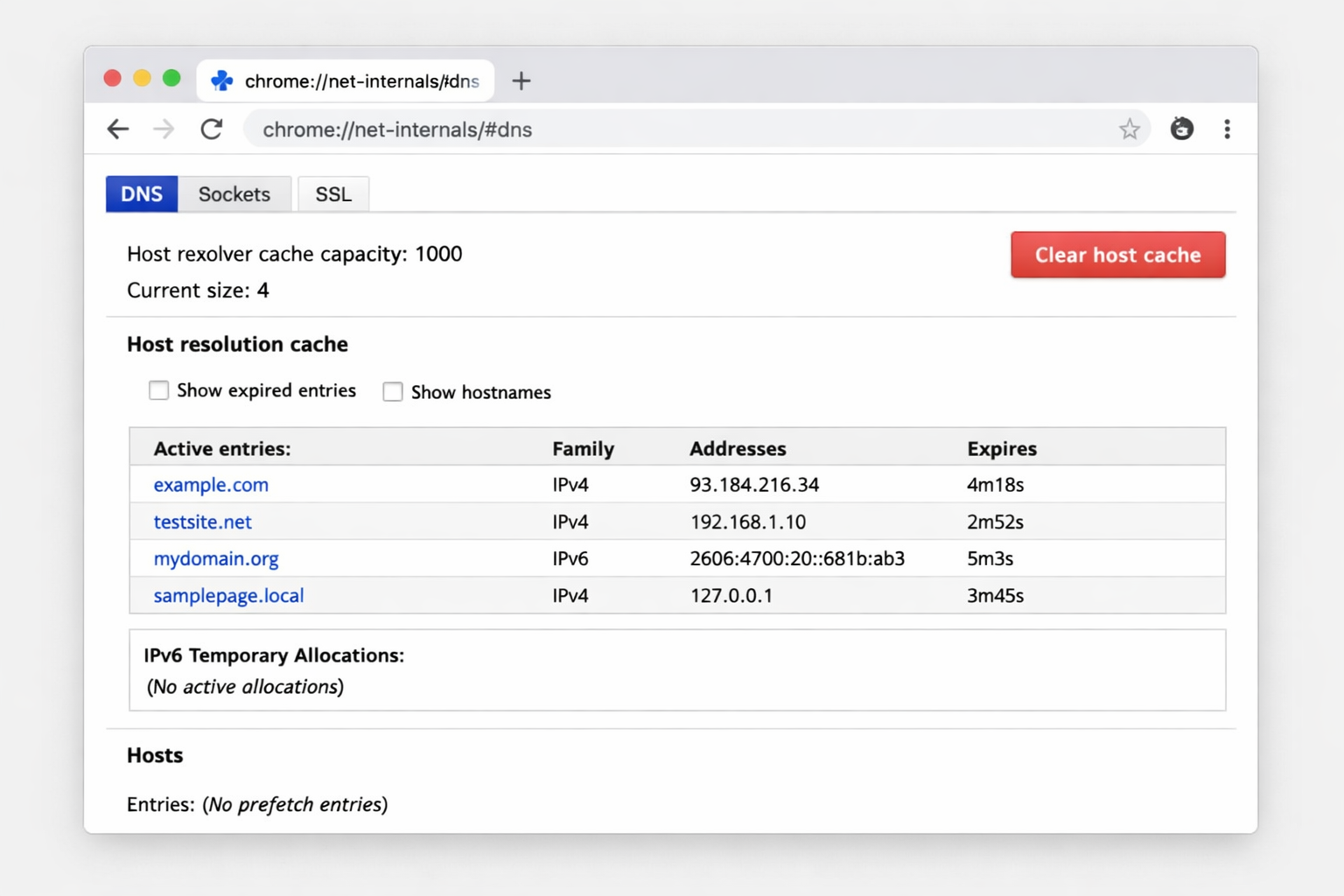
On a desktop computer, typing chrome://net-internals/#dns in Chrome opens a hidden developer panel. This built-in tool lets you see Chrome’s internal DNS (Domain Name System) cache, a list of recently resolved website addresses stored to speed up browsing.
Think of DNS like a phone book. When you type a website address, your browser looks up its actual IP address. Chrome caches these lookups so it doesn’t have to look them up repeatedly. When that cache gets corrupted or outdated, websites stop loading — even when your internet connection is perfectly fine.
The chrome.//net-internals/dns mobile panel on desktop even has a button called “Clear host cache” which flushes all stale DNS entries instantly.
Reality Check: Does chrome.//net-internals/dns Work on Mobile?
| Short Answer: No — chrome.//net-internals/dns mobile does NOT work directly on Android or iPhone. |
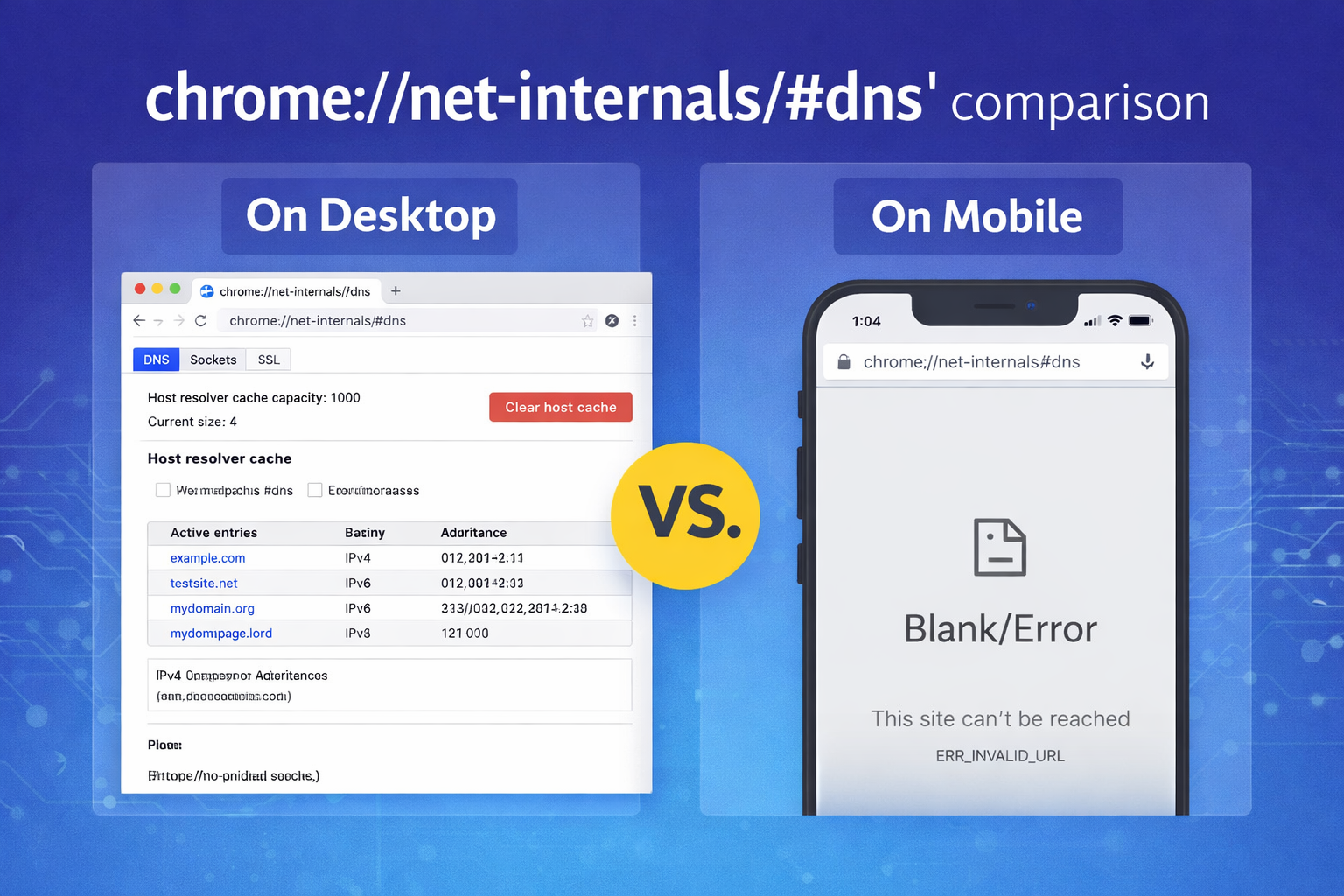
Here’s the truth that most blog posts skip: Chrome on mobile (both Android and iOS) does not support the full net-internals interface. When you type chrome://net-internals/#dns into Chrome on your phone, one of two things happens:
- On Android, Chrome may open a blank or broken page with no DNS controls
- On iPhone, Chrome treats the address like a search query and Googles it instead
This isn’t a bug. It’s by design. Google intentionally stripped out the developer internals from mobile Chrome because the interface wasn’t built for touchscreens and mobile users don’t need raw DNS debugging tools.
But here’s the good news: you can still fix your DNS problems on mobile — you just need to use a different method. Let’s walk through both platforms.
Android Fix: How to Clear Chrome DNS Cache on Android
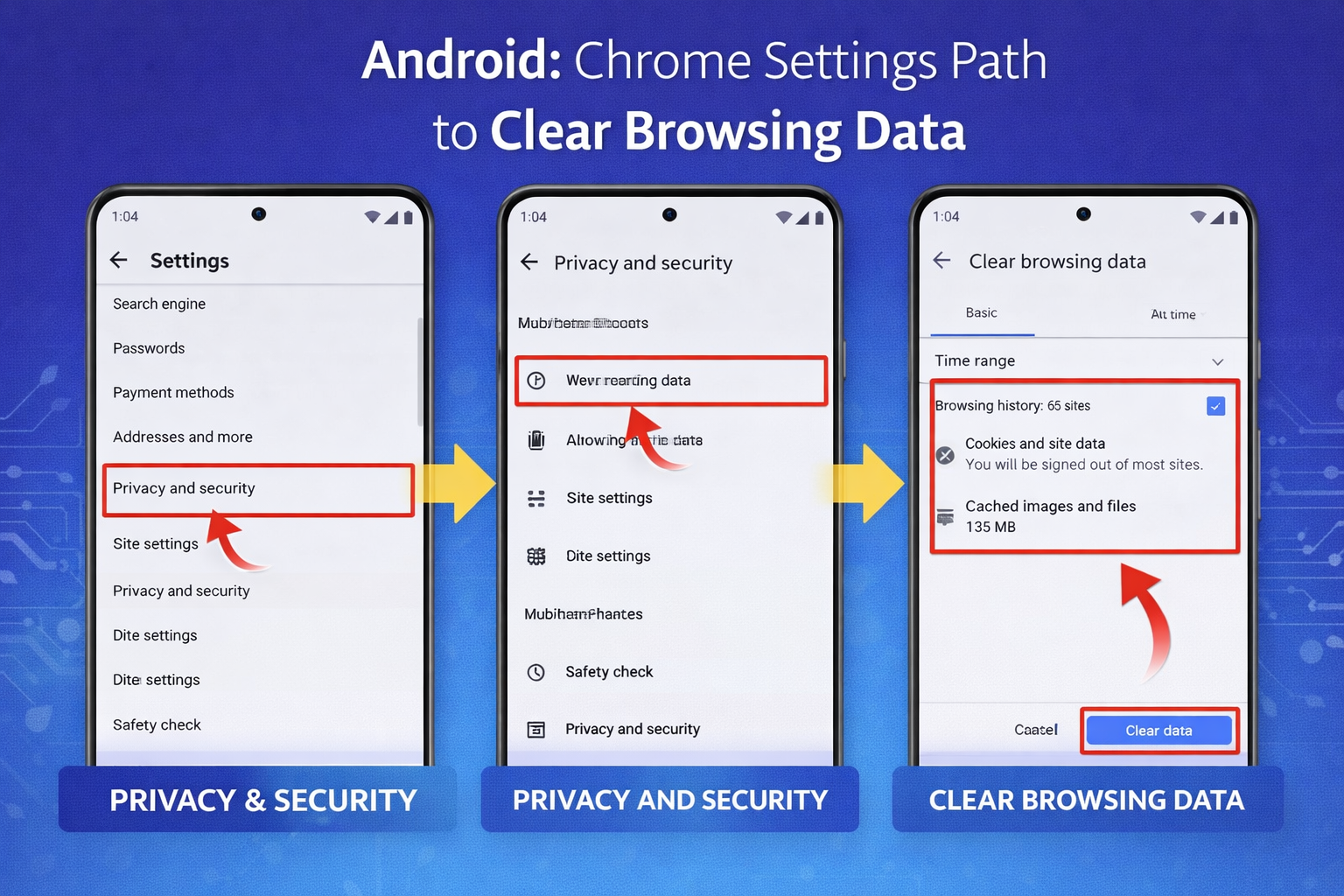
If you’re on Android and need to clear Chrome’s DNS cache, here’s the method that actually works:
Method 1: Clear Browsing Data in Chrome
- Open Chrome on your Android device
- Tap the three-dot menu (⋮) in the top-right corner
- Go to Settings → Privacy and Security → Clear Browsing Data
- Select “All time” from the time range dropdown
- Check: Cookies and Site Data + Cached Images and Files
- Tap Clear Data and confirm
| Pro Tip: This clears Chrome’s partial DNS cache along with site cookies and image cache. It won’t delete your saved passwords or bookmarks. |
Method 2: Use Android’s Network Reset (Nuclear Option)
- Go to your phone’s settings.
- Tap General Management (Samsung) or System (Pixel/Stock Android)
- Select Reset → Reset Network Settings
- Confirm the reset this will also reset your Wi-Fi and Bluetooth settings
This flushes the OS-level DNS cache, which works alongside Chrome’s cache to resolve websites.
Method 3: Toggle Airplane Mode
It sounds too simple, but it works for many users:
- Swipe down to access Quick Settings
- Enable Airplane Mode for 30 seconds
- Disable Airplane Mode and reconnect
- Try loading the website again
iPhone Fix: How to Clear Chrome DNS Cache on iPhone
iOS doesn’t support chrome.//net-internals/dns mobile either, and Safari’s architecture means DNS is handled entirely at the system level. Here’s how to fix DNS issues on iPhone:
Method 1: Clear Chrome’s Cache on iPhone
- Open Chrome on your iPhone
- Tap the three-dot menu (⋯) in the bottom-right corner
- Go to Settings → Privacy → Clear Browsing Data
- Check Cookies, Site Data, and Cached Images and Files
- Tap Clear Browsing Data and confirm
Method 2: Reset Network Settings on iPhone
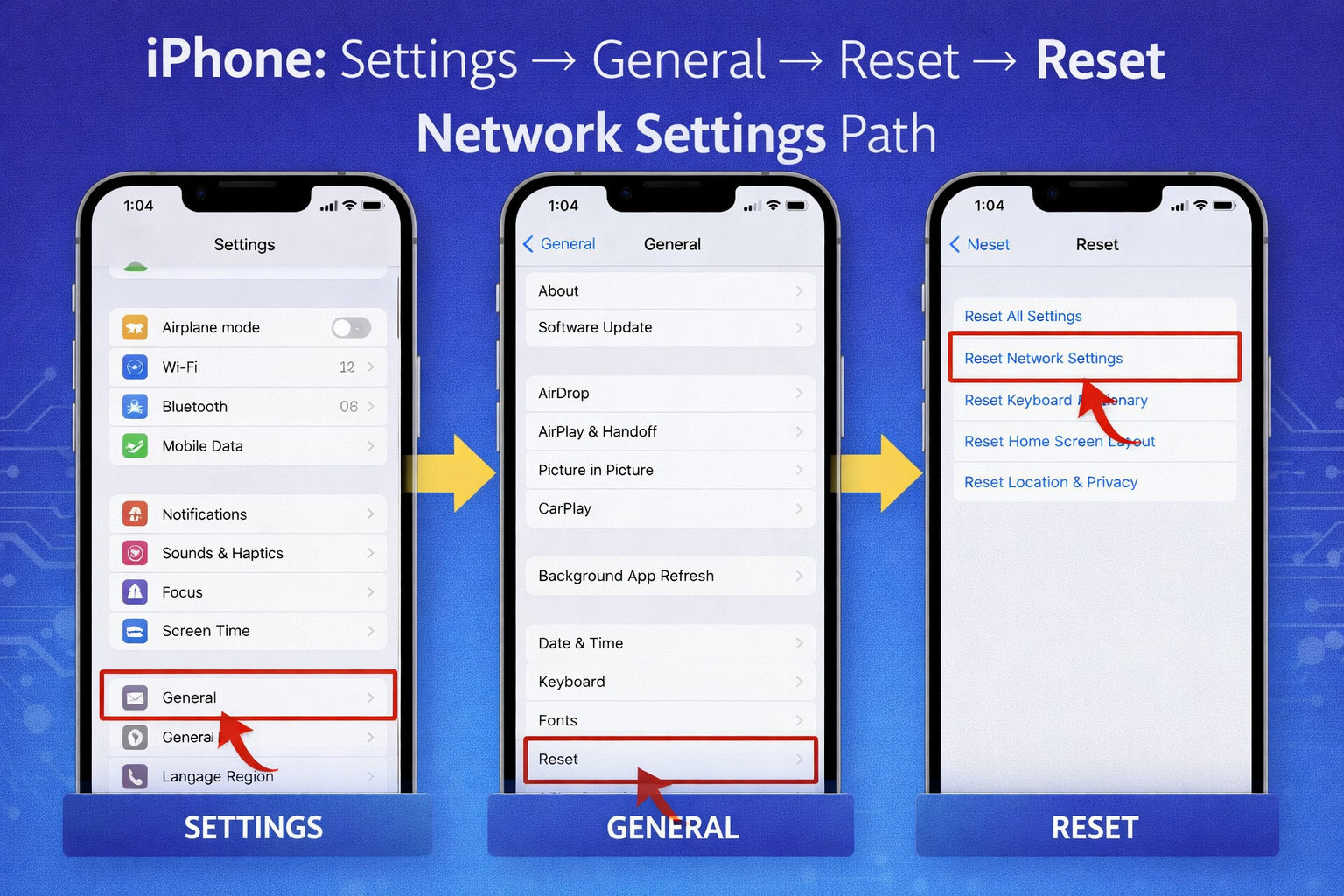
- Open the Settings app
- Tap General → Transfer or Reset iPhone
- Tap Reset → Reset Network Settings
- Enter your passcode and confirm
| Note: Resetting network settings will remove all saved Wi-Fi passwords. Make sure you have them written down or accessible elsewhere. |
Method 3: Change Your DNS Server (Bonus Fix)
If you keep experiencing DNS issues, switching to a faster public DNS can help:
- Go to Settings → Wi-Fi
- Tap the (i) icon next to your connected network
- Scroll to DNS and tap Configure DNS
- Switch from Automatic to Manual
- Google DNS: 8.8.8 and 8.8.4.4 | Cloudflare DNS: 1.1.1.1
DNS Cache, History & Errors — What’s Really Going On?
Let’s quickly decode some terms you’ll see thrown around:
| Term | What It Means |
| DNS Cache | A local store of website IP addresses so Chrome doesn’t re-look them up every time |
| DNS History | Often confused with browser history — it’s not the same. DNS cache doesn’t track your browsing. |
| DNS Error | Happens when Chrome can’t resolve a domain name — usually from stale cache or bad DNS settings |
| Host Cache | Chrome’s internal term for its DNS lookup storage what you’d see in net-internals on desktop |
Why Do DNS Issues Happen? (Expert Insight)
DNS problems on mobile Chrome are more common than people realize, and they usually come down to a few root causes:
- Outdated Cache Entries: A website changes its server IP address, but Chrome’s cache still points to the old one causing a connection failure.
- ISP DNS Issues: Your internet provider’s DNS servers can go down or return incorrect results, blocking legitimate sites.
- Mobile Network Switching: Jumping between Wi-Fi and mobile data can cause Chrome to hold onto stale DNS entries from the previous connection.
- Corrupted Cache: App updates, incomplete page loads, or OS bugs can corrupt Chrome’s internal DNS store.
- Public Wi-Fi Interference: Hotspots and captive portals sometimes manipulate DNS to redirect traffic causing weird errors in Chrome.
| Security Note: If you’re frequently experiencing DNS hijacking or unexpected redirects, it’s worth checking that your DNS isn’t being tampered with. A reliable DNS provider like Cloudflare (1.1.1.1) offers both speed and privacy protection. |
chrome net internals dns – How It Works & Why It Matters
The chrome net internals dns tool in Google Chrome is used to view and clear the browser’s internal DNS cache. When you visit a website, Chrome stores its IP address temporarily to speed up future access. However, outdated or corrupted DNS entries can cause errors like sites not loading. By navigating to chrome://net-internals/#dns, users can clear the host cache and refresh DNS resolution instantly. This helps resolve connectivity issues, especially after website migrations or DNS changes, ensuring faster and more accurate browsing performance.
Protect Your Data While You Fix DNS Issues
While fixing chrome.//net-internals/dns mobile problems, there’s something most guides forget to mention: a connectivity issue or network reset can sometimes lead to data loss, especially if you’re in the middle of syncing files, uploading data, or running cloud-dependent apps.
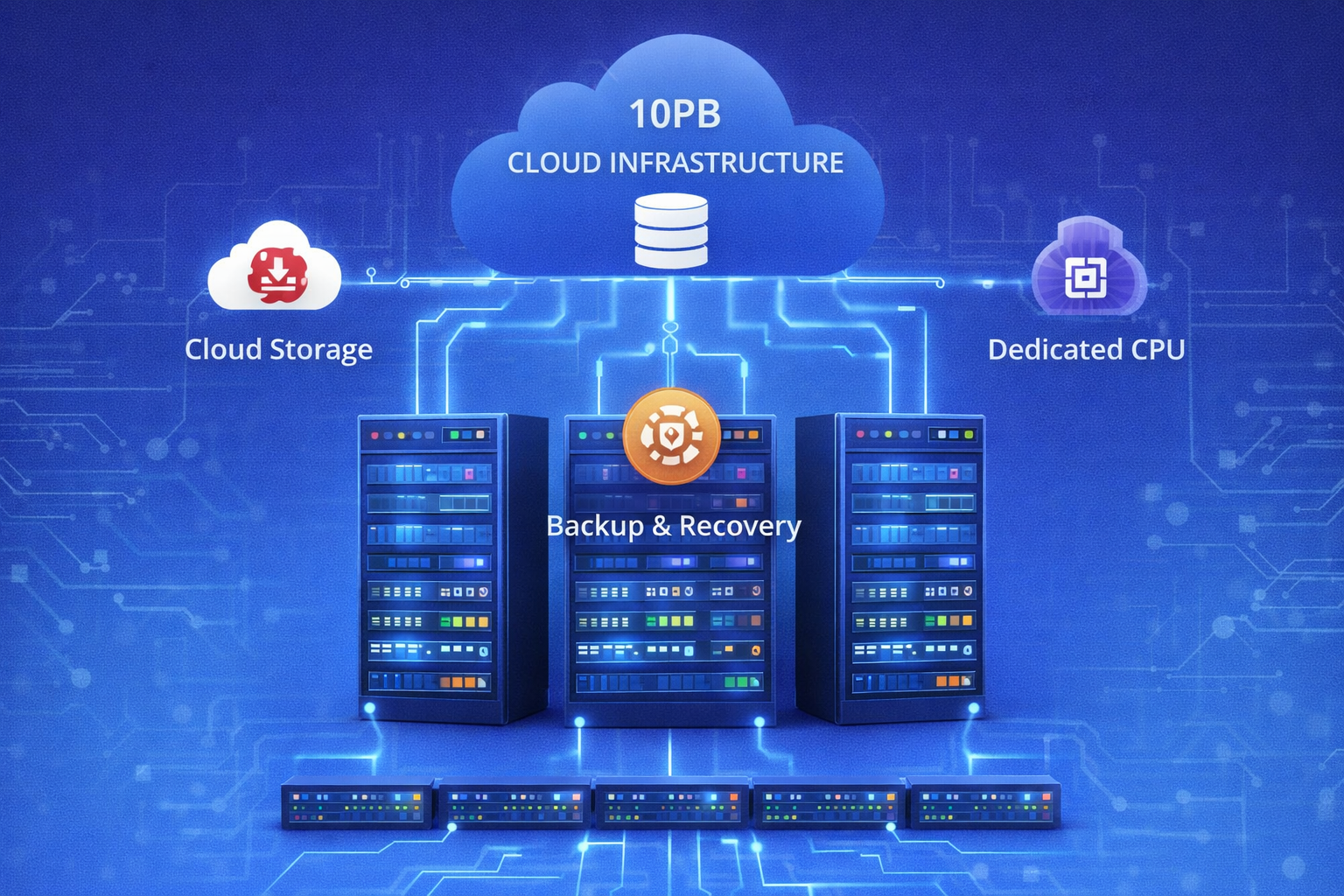
That’s why smart businesses and power users pair their troubleshooting with a solid Backup & Recovery strategy. If a network reset wipes a config or your sync breaks mid-transfer, having a recent backup means you’re never starting from zero.
At 10PB, our Cloud Storage solutions are built to keep your critical data safe even when your local network or device settings go sideways. Whether you’re a business running hundreds of connected devices or an individual managing personal data, having your files safely stored offsite is non-negotiable.
And if you’re running applications or websites yourself, our Dedicated CPU servers ensure your DNS configuration is always stable, fast, and fully in your control no mobile browser limitations, no shared infrastructure throttling your lookups.
Frequently Asked Questions
Can I use chrome.//net-internals/dns on my iPhone?
No. Chrome on iPhone (iOS) does not support the chrome://net-internals/ interface. Typing it in Chrome on iPhone will trigger a Google search instead. Use the network settings reset method described above to clear DNS cache on iPhone.
Does clearing browsing data on Chrome mobile also clear DNS cache?
Partially yes. Clearing cookies and cached images/files in Chrome mobile removes some DNS-related data, but it does not flush the same complete DNS host cache that chrome://net-internals/#dns does on desktop. For a complete flush, combine Chrome cache clearing with a network settings reset on your device.
Will resetting network settings delete my data?
No — resetting network settings only removes Wi-Fi passwords, VPN configs, and cellular settings. It does not delete photos, apps, contacts, or personal files. However, you will need to reconnect to your Wi-Fi networks and re-enter passwords.
How often should I clear my DNS cache on mobile?
Most users never need to manually clear DNS cache Chrome handles it automatically. Only do it if you’re experiencing website loading errors, getting redirected to wrong sites, or after a website has recently changed its server. Once you fix the issue, you can forget about it.
Is there a chrome.//net-internals/dns mobile app alternative?
Not officially from Google. However, some Android apps like DNS Changer and 1.1.1.1 by Cloudflare let you manage DNS settings at the system level, offering similar control to what net-internals provides on desktop — often with a better mobile UI.
Conclusion
The bottom line? chrome.//net-internals/dns mobile is a real and incredibly useful tool, but only on desktop Chrome. On Android and iPhone, you need to take a different route to fix DNS problems, and thankfully those routes aren’t complicated.
Whether you’re clearing Chrome’s cache, resetting network settings, or switching to a faster DNS provider, the fixes covered in this guide will get you back online quickly and reliably.
And if you want to make sure your data stays safe through any network disruption, explore 10PB’s Cloud Storage and Backup & Recovery solutions built for the kind of reliability that your mobile browser’s DNS panel can never guarantee.
| Quick Recap: chrome://net-internals/#dns → Desktop only. For mobile DNS fixes: Clear Chrome cache → Reset network settings → Switch DNS server. Stay backed up with 10PB Cloud Storage. |