

Introduction: Why Websites Sometimes Don’t Load (Even When Internet Works)
Have you ever tried opening a website in Google Chrome, only to find that it doesn’t load, shows outdated content, or redirects incorrectly?
In many such cases, the issue is not with your internet connection or the website itself but with cached DNS data stored in your browser.
Chrome uses DNS caching to improve browsing speed. However, when DNS records change (due to hosting migration, server updates, or CDN changes), the cached data may become outdated, leading to errors like
- DNS_PROBE_FINISHED_NXDOMAIN
- ERR_NAME_NOT_RESOLVED
- Website not loading or redirecting incorrectly
The positive news is that you can resolve these issues quickly by clearing the cache in Chrome.
Sometimes DNS issues can also affect access to online platforms like cloud storage. Using a reliable solution like enterprise-grade cloud storage minimizes such problems. In Google Chrome, this issue can often be resolved using the Chrome Net Internals DNS tool, which allows users to clear cached DNS records and refresh network settings.
This guide will walk you through the complete process, along with technical insights and best practices.
Understanding DNS and DNS Cache
DNS (Domain Name System) is responsible for translating domain names into IP addresses so browsers can locate and load websites.
Example:
When you enter:
DNS resolves it into an IP address like
How DNS Resolution Works
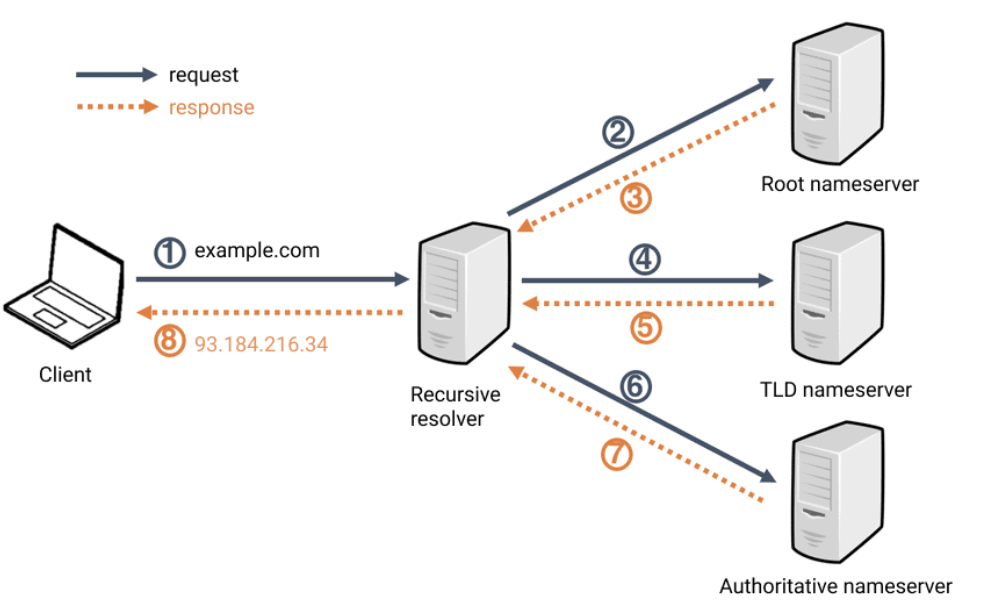
Step-by-step process:
- The browser checks its DNS cache
- The operating system checks local cache
- Request sent to DNS resolver
- Resolver queries authoritative server
- IP address returned
The website loads in the browser.
What is Chrome Net Internals DNS?
The chrome net internals DNS feature is a hidden diagnostic tool in Chrome that helps users view and clear DNS cache.
By accessing the net internals DNS page, users can:
-
View DNS cache entries
-
Clear stored DNS records
-
Force fresh DNS resolution
What is DNS Cache in Chrome?
DNS cache is a temporary storage where Chrome saves domain-to-IP mappings.
Benefits:
- Faster website loading
- Reduced DNS lookup time
- Improved browsing performance
Limitation:
Cached data may become outdated or incorrect
Why DNS Cache Causes Website Issues
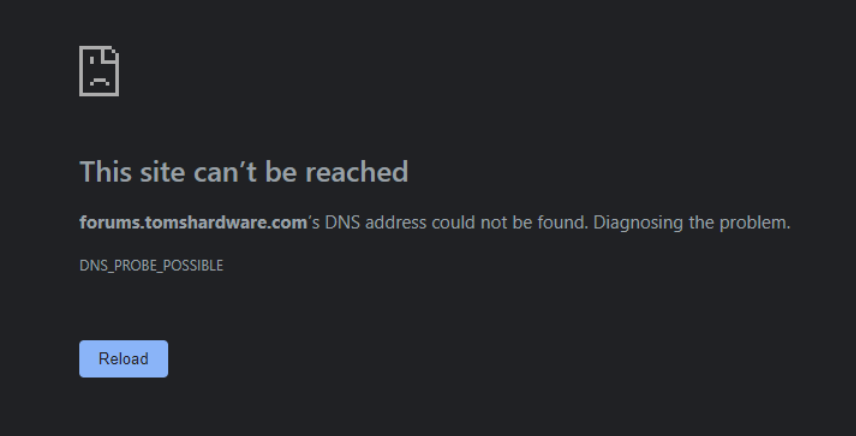
DNS-related issues typically occur when:
🔹 DNS Records Are Updated
Old IP addresses remain cached in Chrome
🔹 Hosting Migration Happens
The browser still points to the previous server
🔹 CDN or Infrastructure Changes
Multiple layers of DNS create inconsistencies
🔹 Cache Gets Corrupted
Temporary glitches cause incorrect mappings
DNS-related issues typically occur when:
🔹 DNS Records Are Updated
Old IP addresses remain cached in Chrome
🔹 Hosting Migration Happens
The browser still points to the previous server
🔹 CDN or Infrastructure Changes
Multiple layers of DNS create inconsistencies
🔹 Cache Gets Corrupted
Temporary glitches cause incorrect mappings
Common Errors:
-
- DNS_PROBE_FINISHED_NXDOMAIN
- ERR_NAME_NOT_RESOLVED
- ERR_CONNECTION_TIMED_OUT
- Incorrect redirects
When DNS fails, users may not be able to access their files stored on cloud platforms. This is why businesses prefer secure and high-availability cloud storage solutions.
The Chrome Net Internals DNS interface effectively resolves these issues.
When Should You Clear DNS Cache?
You should clear the DNS cache if:
- A website is not loading on your browser
- You recently updated DNS or hosting
- You see outdated website content
- You are testing deployment changes
- You encounter repeated DNS errors
How to Open chrome://net-internals/#dns in Chrome
If you’re facing website loading issues in Google Chrome, Chrome provides a simple built-in page called chrome://net-internals/#dns.
This page helps you view and clear the DNS cache easily, without any technical setup.
What can you do on this page?
-
View saved DNS records
-
Clear DNS cache in one click
-
Force Chrome to fetch updated website data
When should you use it?
-
A website is not loading
-
You see outdated content
-
There are redirect issues
-
You get DNS-related errors
Simply open this page and clear the cache in most cases, the issue gets resolved quickly.
Step-by-Step Guide: Clear DNS Cache in Chrome
Step 1: Open Chrome DNS Internal Page
In your Chrome browser, type:
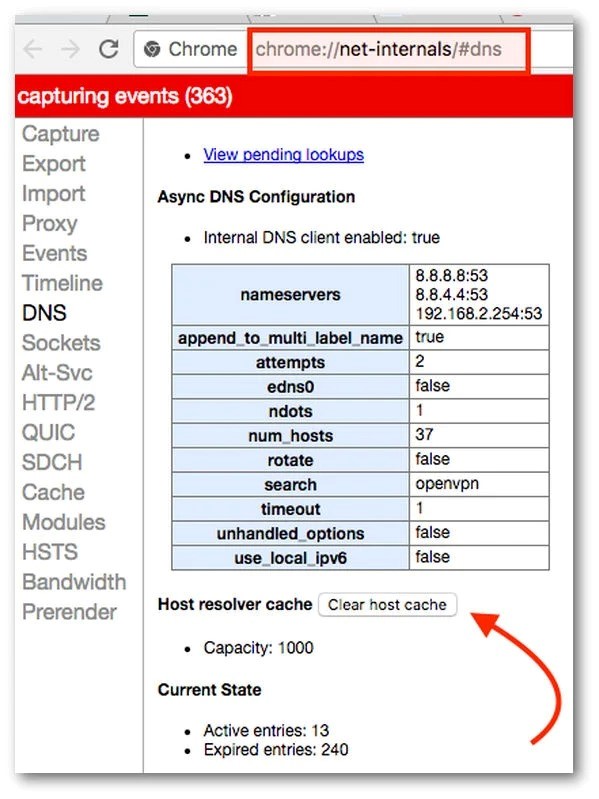
What You Will See:
- DNS cache entries
- Domain-to-IP mappings
- “Clear host cache” option
This opens the chrome net internals DNS page
Step 2: Clear Host Cache
Click on “Clear host cache.”
What Happens Internally:
- Chrome deletes all stored DNS entries
- Forces fresh DNS resolution
- Eliminates outdated records
Step 3: Verify Cache Clearance
- DNS entries list becomes empty or resets
- New requests will use updated DNS data
Advanced Step: Flush Socket Pools
DNS cache clearing alone may not fully resolve the issue.
Step 4: Open Socket Interface
chrome://net-internals/#sockets
Step 5: Click “Flush Socket Pools.”
Why This Step Matters:
- Clears active connections
- Removes sessions using old DNS
- Ensures updated DNS is applied
Step 6: Restart Chrome
Restarting ensures:
- Complete network reset
- No residual cache remains
Testing After Clearing DNS Cache
After completing all steps:
- Reload the affected website
- Check:
- Is the website loading correctly?
- Are errors resolved?
- Are redirects working properly?
If yes, the issue is resolved.
Clearing System DNS Cache (Windows)
Chrome cache is only one layer. System-level DNS may still contain outdated records.
Steps:
- Open Command Prompt
- Run:

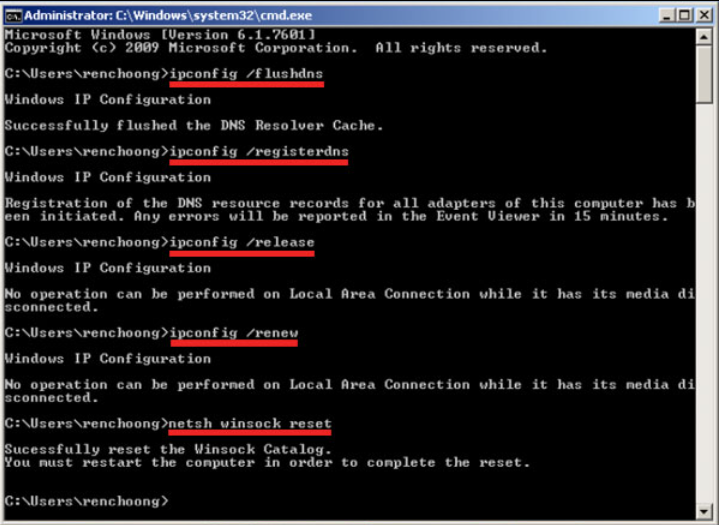
Result:
- System DNS cache cleared
- All applications use updated DNS
Chrome DNS Cache vs System DNS Cache
| Feature | Chrome DNS Cache | System DNS Cache |
|---|---|---|
| Scope | Browser only | Entire system |
| Reset Method | Net Internals | Command Prompt |
| Purpose | Faster browsing | System-wide resolution |
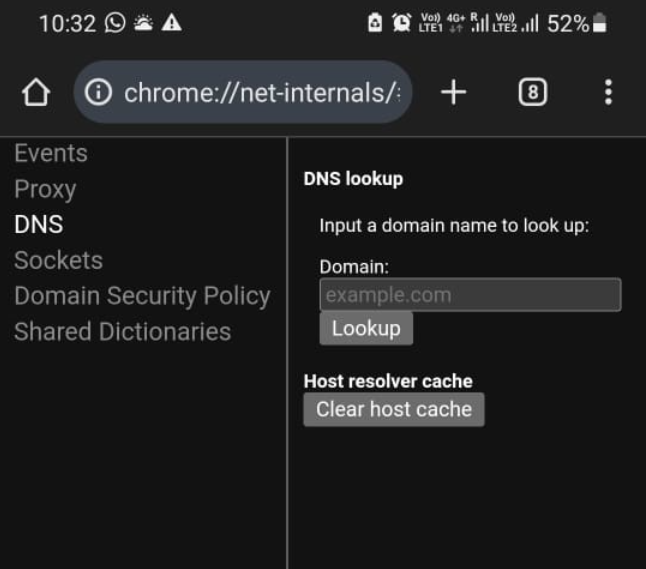
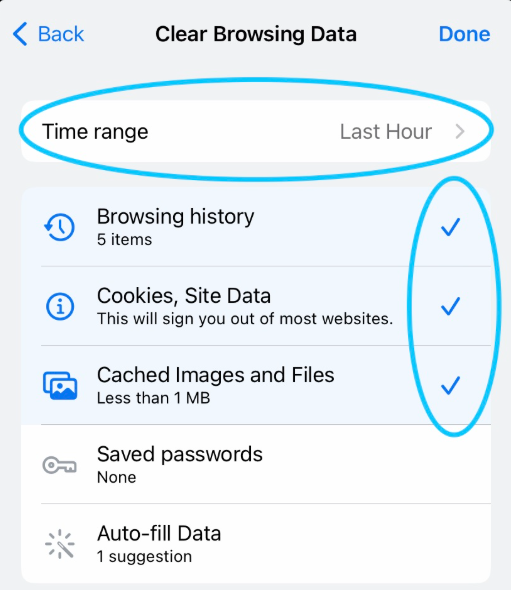
DNS Cache on Mobile Chrome
Chrome mobile does not support net-internals.
Alternative:
- Clear browsing data
- Restart browser
Common DNS Errors Explained
DNS_PROBE_FINISHED_NXDOMAIN
Domain not found
ERR_NAME_NOT_RESOLVED
DNS resolution failed
ERR_CONNECTION_TIMED_OUT
Server not responding
Clearing the cache typically resolves these issues.
Why DNS Issues Are Increasing Today
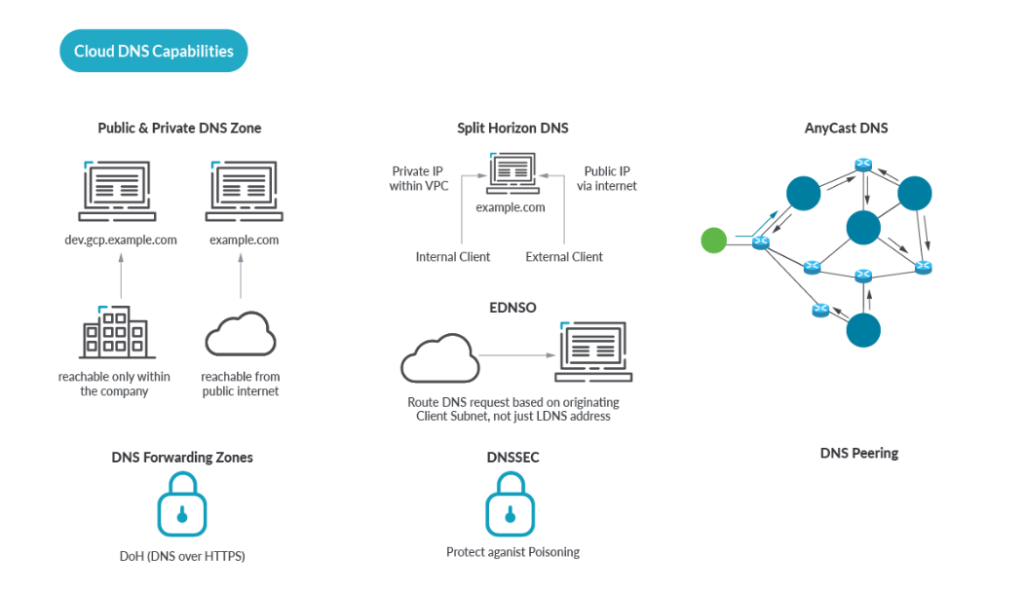
Modern IT environments involve:
- Cloud infrastructure
- Multi-region deployments
- CDN layers
- Edge computing
This increases DNS dependency and complexity.
Best Practices to Avoid DNS Issues
- Use reliable DNS providers
- Avoid frequent DNS changes
- Monitor propagation delays
- Configure CDN properly
- Maintain stable infrastructure
Frequently Asked Questions (FAQs)
1. Is clearing the DNS cache safe?
Yes, it only removes temporary DNS records.
2. How often should I clear the DNS cache?
Only when facing DNS-related issues.
3. Does it delete browsing history?
No, it does not affect history or saved data.
4. Why does cache become outdated?
This can occur as a result of server changes, DNS updates, or migrations.
5. What is the fastest way to correct DNS errors?
The fastest method to correct DNS errors is to clear the cache and flush the socket pools.
6. Can DNS issues affect cloud storage or GPU servers?
Yes, DNS issues can block access to online services. Using reliable platforms like 10PB for cloud storage and Inhosted.ai for GPU servers helps ensure better uptime and fewer connectivity problems.
Conclusion
Clearing the DNS cache using Chrome Net Internals is one of the most effective ways to fix website loading issues in Chrome.
Understanding how DNS works and how caching affects performance helps users troubleshoot issues quickly and efficiently.
